

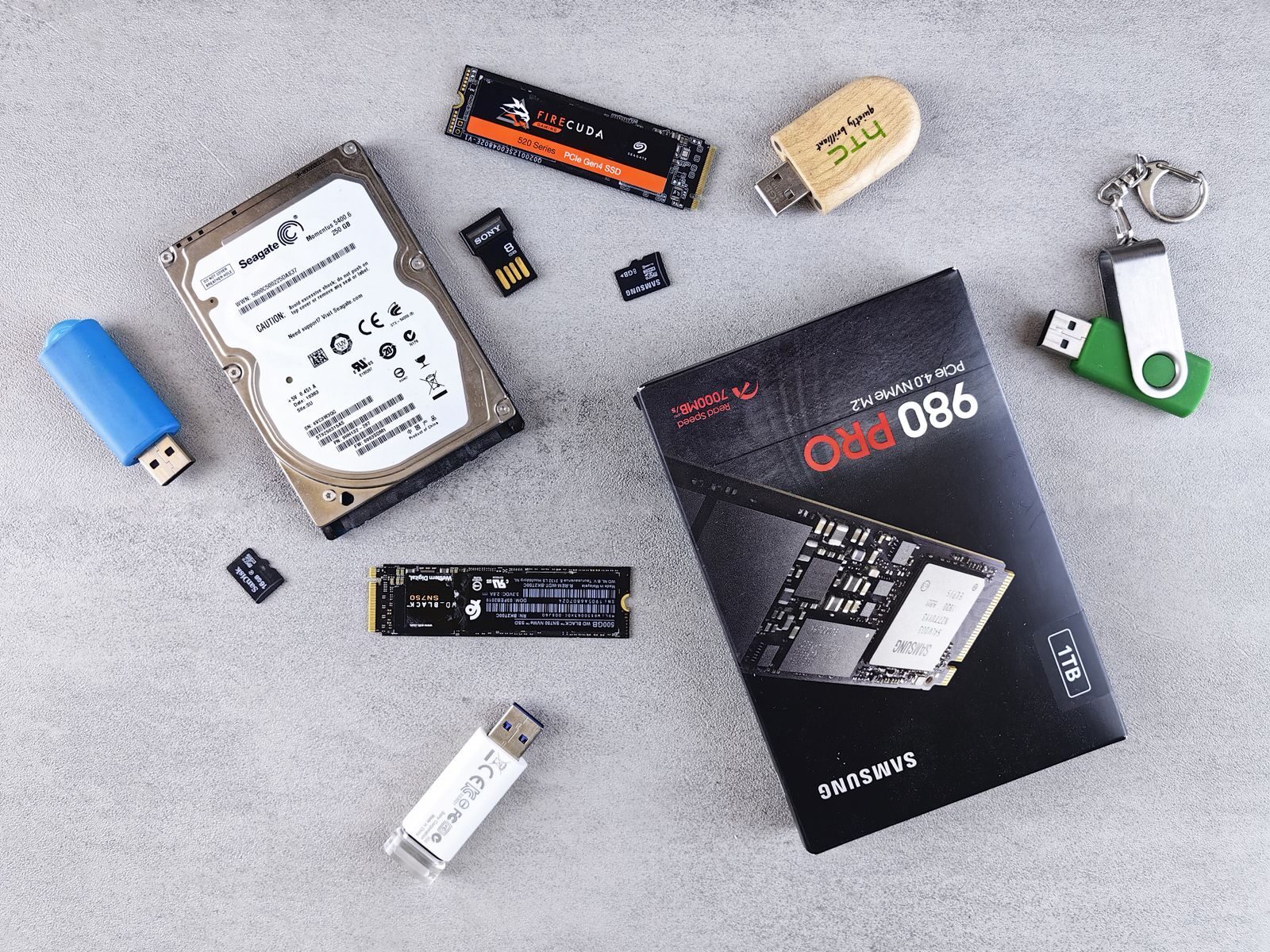
Choosing between an SSD and an HDD depends on what you want from the upgrade. An SSD is usually the better choice for the operating system, applications, and everyday responsiveness, while an HDD can still make sense when you need a large amount of storage at a lower cost.
Before buying either one, check what type of drive your computer supports, how much capacity you actually need, and whether you plan to replace your existing drive or add a second one.
SSD vs HDD: The Short Answer
For most people upgrading the main drive in a laptop or desktop computer, an SSD is the better choice.
Choose an SSD if you want:
- Faster startup
- Quicker application loading
- Better everyday responsiveness
- Silent operation
- Lower vulnerability to mechanical shock
Choose an HDD when you mainly need:
- Large amounts of inexpensive storage
- Space for videos and large media libraries
- Archive storage
- A secondary local backup destination
A desktop computer can also use both: an SSD for the operating system and active files, and a larger HDD for bulk storage.
What Is an SSD?
A solid-state drive stores data on flash memory and has no moving mechanical parts.
That allows it to access data much more quickly than a traditional hard drive in many everyday tasks.
SSDs are commonly used for:
- Operating systems
- Applications
- Games
- Active work files
- Laptop storage
They are available in several formats, so it is important not to assume that every SSD fits every computer.
What Is an HDD?
A hard disk drive stores data on rotating magnetic platters.
Unlike an SSD, it contains moving mechanical components.
HDDs have been used in computers for decades and remain useful when storage capacity matters more than maximum speed.
They are commonly used for:
- Large photo collections
- Video libraries
- Archives
- Secondary desktop storage
- Local backup storage
Their main advantage today is usually the amount of storage available for the price.
SSD Is Usually Much Faster for Everyday Use
Replacing an older hard drive with an SSD can make a computer feel considerably more responsive.
Tasks that often improve include:
- Starting the computer
- Opening applications
- Loading files
- Installing software
- Running updates
- Searching through local files
The improvement is especially noticeable on an older computer where the hard drive is the main performance bottleneck.
An SSD will not make a slow processor or insufficient RAM disappear, but replacing an HDD system drive is often one of the most noticeable upgrades available for an otherwise usable computer.
HDDs Usually Offer More Capacity for the Money
If you need several terabytes of storage, a hard drive may still be more economical.
This can matter when storing:
- Large video collections
- Raw photos
- Project archives
- Game libraries
- Disk images
- Backups
For files that are rarely opened, the additional speed of an SSD may not provide enough benefit to justify paying more for the same capacity.
That is why HDDs remain common as secondary storage even in computers that use an SSD as the main drive.
SSDs Are Silent
Because an SSD has no moving mechanical components, it does not produce the spinning or clicking sounds associated with hard drives.
An HDD may make normal operating sounds while reading or writing data.
Unusual clicking, grinding, or repeated mechanical noises from a hard drive can indicate a problem and should not simply be ignored, especially when important files are stored on it.
SSDs Handle Physical Movement Better
Mechanical hard drives can be vulnerable to physical shock, particularly while operating.
This matters in laptops because they are frequently moved while powered on.
SSDs do not contain spinning platters or moving read heads, so normal movement is less likely to cause mechanical damage.
That does not make an SSD indestructible. Electronics, connectors, controllers, and flash memory can still fail.
Important data needs a backup regardless of the drive type.
Do SSDs Last Forever?
No storage device lasts forever.
SSD flash memory has a finite write endurance, while hard drives contain mechanical components that can wear or fail.
For ordinary home and office use, modern consumer SSD endurance is generally sufficient for typical workloads.
Instead of trying to predict exactly when a drive will fail, assume that any drive can eventually fail and maintain backups of important files.
A healthy drive should never be treated as the only copy of valuable data.
SATA SSD vs NVMe SSD
Not all SSDs are the same.
Two common categories are SATA SSDs and NVMe SSDs.
SATA SSD
SATA SSDs are often available as 2.5-inch drives and can be useful for upgrading computers originally designed for a 2.5-inch hard drive.
They provide a major responsiveness improvement over traditional HDDs for everyday use.
NVMe SSD
NVMe SSDs commonly use an M.2 slot and can provide substantially higher data-transfer performance than SATA drives when the computer supports them.
They are particularly useful for workloads involving large files, demanding applications, or frequent high-speed data transfers.
For ordinary browsing, office work, and general computer use, both types can feel fast compared with a mechanical HDD.
Do Not Assume Every M.2 Drive Will Work
The physical appearance of a drive does not guarantee compatibility.
M.2 slots can differ in:
- Supported interfaces
- Drive lengths
- PCIe generation
- SATA or NVMe support
Before buying an M.2 SSD, check the computer or motherboard documentation.
Searching by the exact laptop or motherboard model is safer than purchasing a drive based only on its physical size.
Check Laptop Compatibility Before Buying
Laptop upgrades require particular attention because internal space is limited.
Your laptop may support:
- A 2.5-inch SATA drive
- An M.2 SSD
- Both
- Soldered storage that cannot be replaced
Some laptops also have only one storage slot.
If you replace the existing drive, you will need a plan for moving your operating system and data before removing it.
Check the service manual or manufacturer’s specifications for the exact laptop model.
Desktop Computers Offer More Flexibility
Desktop PCs often provide several storage connections and physical drive locations.
This makes a mixed configuration practical.
For example:
- SSD: Windows, applications, games, and active projects
- HDD: videos, archives, large media libraries, and secondary storage
You do not necessarily need to replace a working hard drive when adding an SSD.
If the system supports both, the old HDD can sometimes remain as secondary storage after the operating system is moved to the SSD.
How Much SSD Storage Do You Need?
Capacity depends on what you store locally.
A smaller SSD may be sufficient for basic office work and cloud-based storage, while users with large games, video projects, photos, or professional software may need considerably more space.
Before buying a drive:
- Check how much space your current files use.
- Look at how much free space remains.
- Consider how quickly your storage use is growing.
- Leave room for applications, updates, and future files.
Avoid buying a drive that will already be almost full immediately after migration.
Should You Replace an Old HDD With an SSD?
If an older computer still performs well enough in other areas but feels slow when starting, opening programs, or loading files, an SSD upgrade may make sense.
Before spending money, check:
- Whether the drive can be replaced
- Which SSD interface is supported
- Whether the computer has enough RAM for your needs
- Whether the processor is still adequate
- Whether the operating system is still supported
An SSD can improve storage performance dramatically, but it cannot solve every limitation of an outdated computer.
Should You Upgrade RAM or Storage First?
The answer depends on the bottleneck.
An SSD is often the better first upgrade when:
- The computer still uses a mechanical system drive.
- Startup is very slow.
- Programs take a long time to open.
- Disk activity frequently delays normal work.
More RAM may be more useful when:
- The computer already has an SSD.
- You frequently use many applications simultaneously.
- Memory usage regularly approaches its limit.
- Large applications constantly need more memory.
Check actual system usage before buying either component.
What About External SSDs and HDDs?
External drives follow many of the same principles.
An external SSD is useful when you want:
- Fast portable storage
- Quick transfers of large files
- Storage that is frequently moved
- An external workspace for active projects
An external HDD can make more sense when you need:
- Large backup capacity
- Long-term file storage
- Bulk media storage
- Lower cost per unit of capacity
Connection speed also matters. A fast SSD connected through a slow interface may not achieve its full performance.
Neither SSD nor HDD Is a Backup Strategy by Itself
A second drive inside your computer can provide more storage, but it should not automatically be considered a complete backup.
If the computer is stolen, damaged, infected with destructive malware, or affected by another serious failure, both internal drives may be lost at the same time.
Important data should have another independent copy.
That might involve:
- An external drive
- A trusted cloud backup service
- Another computer or storage device
- A combination of local and off-site storage
The important principle is that your only copy should not live on one drive.
Back Up Before Replacing a Drive
Before removing or cloning an existing system drive, create a separate backup of important files.
Do not rely entirely on the cloning process.
At minimum, protect:
- Documents
- Photos
- Project files
- Important downloads
- Locally stored email or application data
- Other files that cannot easily be recreated
Verify that important files are readable from the backup before beginning the upgrade.
Cloning vs a Clean Installation
When replacing a system drive, you generally have two broad options.
Clone the existing drive
Cloning copies the existing system to the new drive.
This can preserve:
- The operating system
- Applications
- Settings
- Files
It can be convenient when the existing installation works well.
Perform a clean installation
A clean installation starts with a fresh operating-system setup.
This requires more work because applications and settings need to be restored manually, but it can avoid carrying years of unnecessary software and configuration into the new drive.
Whichever method you choose, keep a separate backup of important data.
When an HDD Still Makes Sense
An HDD remains a reasonable choice when:
- You need several terabytes at the lowest practical cost.
- The drive will mainly hold archives.
- Speed is not important for the stored files.
- You already have an SSD for active work.
- You need large local backup capacity.
There is no need to treat HDDs as obsolete simply because SSDs are faster.
They solve a different storage problem.
When an SSD Is the Better Choice
Choose an SSD when:
- It will contain your operating system.
- You want faster startup and application loading.
- You use a laptop that is frequently moved.
- You regularly work with active files.
- You want quiet operation.
- You run applications that benefit from faster storage.
For most everyday computers, the main system drive should now usually be an SSD when the hardware supports one.
Can You Use Both?
Yes.
A mixed storage setup can provide a practical balance between performance and capacity.
For example:
SSD
Operating system
Applications
Games
Current projects

HDD
Photos
Video archive
Old projects
Large media files
Local backups
This works particularly well in desktop computers with enough available connections and drive bays.
Quick SSD vs HDD Checklist
- Choose an SSD for the operating system and applications.
- Consider an HDD when inexpensive bulk capacity matters most.
- Check whether your computer supports SATA, M.2 SATA, or NVMe storage.
- Confirm physical dimensions and interface compatibility before buying.
- Check how much capacity you actually need.
- Consider using SSD and HDD together in a desktop computer.
- Do not assume either drive type is immune to failure.
- Maintain an independent backup of important files.
- Back up your data before replacing or cloning a system drive.
- Check whether another component is the real performance bottleneck before upgrading.
Conclusion
For most computers, an SSD is the best choice for the operating system, applications, and frequently used files because it provides much faster access and has no moving mechanical parts.
HDDs still make sense when you need a large amount of inexpensive storage for archives, media, or secondary storage.
In many desktop systems, the most practical solution is not choosing one or the other, but combining a fast SSD with a larger HDD.
Before purchasing either drive, check compatibility, capacity requirements, and your backup plan.
Find more practical technology guides in Tech.




