

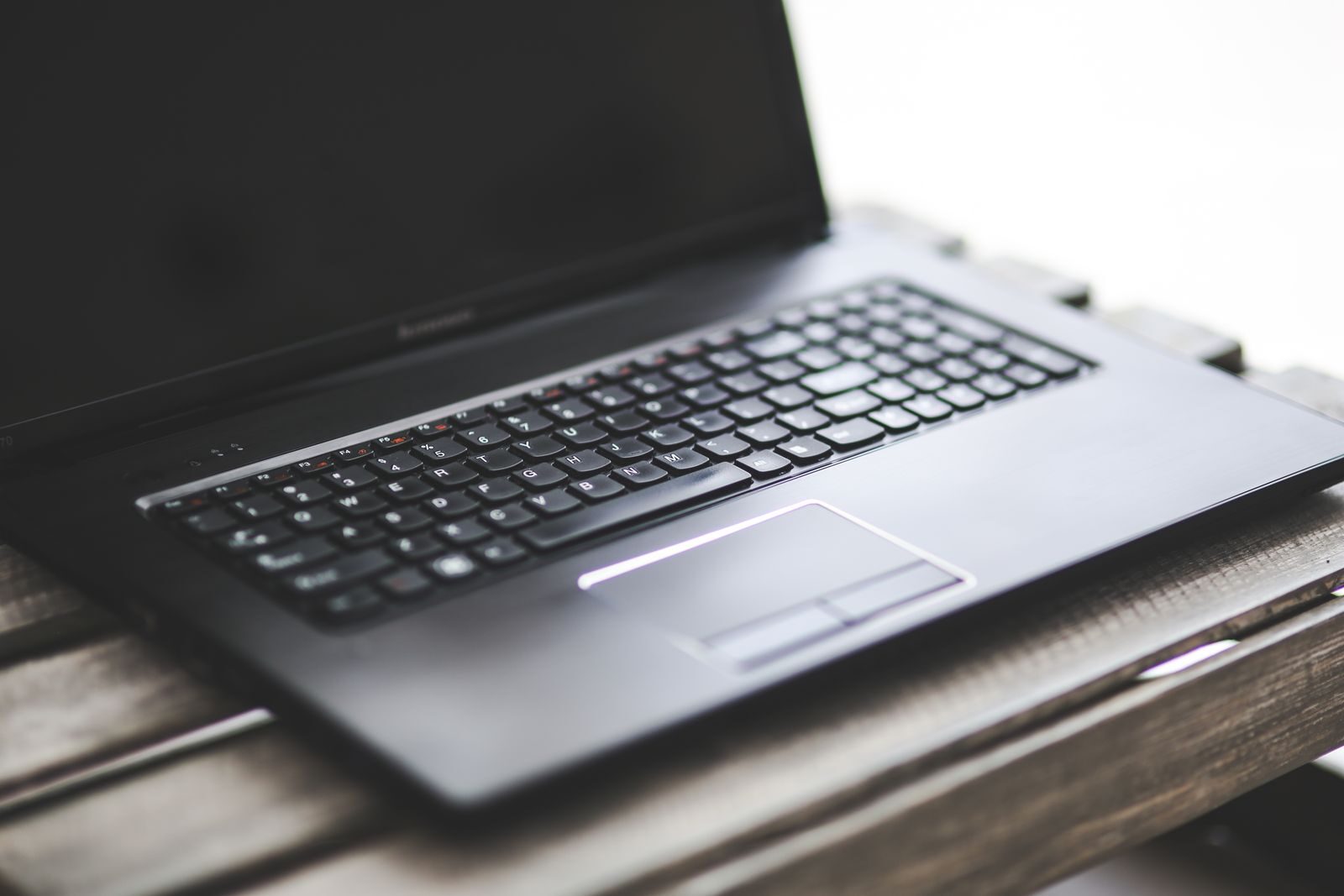
Laptop overheating can cause loud fans, reduced performance, uncomfortable surface temperatures, and unexpected shutdowns. In many cases, the cause is simple: blocked airflow, dust, excessive background activity, or an unsuitable working surface.
Start with safe external checks before opening the laptop or replacing hardware. If you notice battery swelling, a burning smell, smoke, or repeated shutdowns, stop using the device and have it inspected professionally.
How to Tell If a Laptop Is Actually Overheating
A laptop becoming warm during use is normal. Processors, graphics chips, batteries, and other components generate heat while working.
Possible signs of excessive heat include:
- Fans running at high speed for long periods
- Performance suddenly becoming slower under load
- The laptop becoming unusually hot even during light tasks
- Unexpected shutdowns or restarts
- Games or demanding applications losing performance after several minutes
- Heat warnings from system or manufacturer software
Do not judge the problem only by touching the case. Some laptops naturally feel warm because their chassis helps transfer heat away from internal components.
Start With the Surface Under the Laptop
Always use the laptop on a hard, stable surface when troubleshooting heat.
Beds, blankets, cushions, sofas, and other soft materials can block ventilation openings.
A desk or table allows air to move more freely around the device.
If temperatures improve significantly when you move the laptop from a soft surface to a desk, airflow was probably contributing to the problem.
Find the Air Intake and Exhaust Vents
Laptop ventilation layouts vary.
Common vent locations include:
- The bottom panel
- The sides
- The rear edge
- The area near the display hinge
Check whether books, papers, cases, stands, or other objects are blocking these openings.
Do not cover the vents simply because the laptop is uncomfortable to touch.
Clean Dust From External Vents
Dust can gradually restrict airflow.
Before cleaning:
- Shut the laptop down completely.
- Disconnect the charger.
- Remove external devices.
- Allow the laptop to cool.
Use a soft brush or gentle airflow to remove loose dust around external ventilation openings.
Avoid pushing metal objects, cotton swabs, or other tools deep inside the vents.
Aggressive compressed air can also spin internal fans at excessive speed or push dirt deeper into the device if used carelessly.
If the vents are heavily clogged internally, professional cleaning may be safer.
Check What Is Using the Processor
High processor usage creates more heat.
If the fans suddenly become loud while you are doing very little, check which applications are active.
On Windows, Task Manager can show CPU, memory, disk, and other resource usage.
Look for applications consuming unusually high resources.
Possible causes include:
- Large software updates
- Many browser tabs
- Video calls
- Games
- Cloud synchronization
- File indexing
- Video editing or rendering
- Background applications
Do not end unfamiliar system processes simply because their names look unusual.
Close Applications You Do Not Need
If several demanding applications are running at once, close the ones you are not currently using.
For example, running a game while dozens of browser tabs, video software, cloud synchronization, and other programs remain active can increase CPU and GPU load.
Reducing unnecessary load may lower temperatures and fan noise without requiring any hardware changes.
Check Browser Tabs and Extensions
Web browsers can consume substantial system resources.
A single problematic website, video, browser extension, or large collection of open tabs may keep the processor active.
If overheating seems to happen mainly while browsing:
- Close tabs you no longer need.
- Restart the browser.
- Temporarily disable suspicious extensions.
- Check the browser’s built-in task manager when available.
If the heat problem disappears afterward, one of those browser processes may have been responsible.
Restart the Laptop
A restart can stop temporary background processes that have become stuck or unusually active.
If the laptop suddenly begins running hot without an obvious reason, restart it and observe whether the problem returns.
If it becomes hot again immediately under very light use, continue troubleshooting rather than repeatedly restarting it.
Install Important System Updates
Operating-system, driver, firmware, and manufacturer updates can sometimes improve power management, fan behavior, compatibility, or performance.
Use the laptop manufacturer’s official support tools or website when checking device-specific updates.
Be especially careful with BIOS or firmware updates.
Follow the manufacturer’s instructions and do not interrupt the device during a firmware update.
Check Power Mode Settings
Many laptops allow you to choose between performance and power-saving modes.
A high-performance mode may keep the processor running at higher speeds, increasing heat and fan activity.
If you are only browsing, writing, or performing basic office work, a balanced or recommended power mode may be sufficient.
You do not necessarily need maximum performance for every task.
Check Whether the Problem Happens Only While Charging
Charging generates additional heat, particularly when the battery is low or the laptop is being used heavily at the same time.
Observe whether the device runs significantly hotter only while connected to power.
A small increase can be normal.
However, unusual charger heat, damaged cables, intermittent charging, or excessive battery temperature should be investigated rather than ignored.
Use a charger that meets the manufacturer’s requirements for the laptop.
Check the Room Temperature
A laptop’s cooling system works by transferring heat into the surrounding air.
If the room itself is very hot, cooling becomes less effective.
During warm weather:
- Keep vents unobstructed.
- Avoid direct sunlight.
- Do not leave the laptop in a hot vehicle.
- Use the device in a reasonably ventilated area.
A cooling system that works normally in a cool room may struggle under the same workload in extreme ambient heat.
Raise the Laptop Slightly When Appropriate
If your laptop draws air through vents on the bottom, slightly increasing the space underneath can improve airflow.
A stable laptop stand can help.
Make sure the stand does not cover the ventilation openings.
Avoid balancing the laptop on unstable objects simply to create more space underneath.
Do You Need a Laptop Cooling Pad?
A cooling pad may provide some benefit for certain laptops, particularly models with bottom ventilation.
However, it should not be used to hide an underlying problem such as:
- Blocked vents
- A failed internal fan
- Heavy dust buildup
- Constant excessive CPU usage
- A damaged cooling system
Treat a cooling pad as an optional airflow aid rather than a repair for a failing laptop.
Listen to the Fan
Fan behavior can provide useful clues.
Normal fan noise usually rises and falls depending on workload.
Warning signs include:
- Grinding
- Scraping
- Repeated clicking
- A fan that never appears to run
- A fan that suddenly becomes much louder than before
Mechanical noises may indicate fan wear or obstruction.
Do not continue inserting objects through ventilation openings to try to free the fan.
Check for Dust Inside the Laptop
External cleaning cannot remove every internal dust buildup.
Over time, dust can collect around:
- Fans
- Heat sinks
- Ventilation channels
This can significantly reduce cooling efficiency.
Opening a laptop is not equally simple or safe on every model.
Some devices contain delicate cables, clips, adhesives, or batteries that can be damaged during disassembly.
If you are unfamiliar with laptop repair, professional internal cleaning may be the better option.
What About Replacing Thermal Paste?
Thermal paste helps transfer heat between certain chips and the cooling assembly.
On older laptops, degraded thermal material can sometimes contribute to higher temperatures.
However, replacing thermal paste requires opening the laptop and removing part of the cooling system.
It should not be the first troubleshooting step.
Check airflow, dust, background activity, power settings, and fan operation first.
If thermal service is necessary and you are not experienced with laptop disassembly, consider professional repair.
Check Manufacturer Diagnostic Tools
Some laptop manufacturers provide built-in diagnostic programs that can test fans, batteries, temperature sensors, and other hardware.
These tools can be useful because they are designed for the specific device.
If available, use the manufacturer’s official diagnostics before installing multiple third-party utilities.
Temperature Monitoring Can Provide Context
Temperature-monitoring software can help determine whether the laptop is running unusually hot under specific workloads.
Do not focus on one temperature number without context.
Normal temperatures vary depending on:
- Processor model
- Laptop design
- Workload
- Power mode
- Ambient temperature
- Cooling system
Compare behavior during idle use and demanding tasks rather than assuming one universal temperature limit applies to every laptop.
Back Up Important Files if Shutdowns Begin
Repeated heat-related shutdowns are more serious than ordinary fan noise.
If the laptop contains important files, make sure they are backed up before continuing extensive troubleshooting.
Unexpected shutdowns can interrupt file operations and may indicate a hardware problem that could worsen.
Do not wait until the device stops working completely before protecting important data.
Watch for Battery Swelling
Battery swelling requires immediate attention.
Possible signs include:
- The bottom panel bulging
- The trackpad lifting or becoming difficult to click
- A gap appearing between parts of the case
- The laptop no longer sitting flat
Do not press, puncture, bend, or attempt to flatten a swollen battery.
Stop using the laptop and arrange safe battery replacement or professional service.
Stop Immediately if You Smell Burning
A strong burning or electrical smell is not a normal symptom of an overheating laptop.
If you notice:
- Smoke
- Burning smells
- Sparking
- Extreme localized heat
- Visible battery damage
stop using the device and disconnect power if it is safe to do so.
Do not continue troubleshooting through software while the device shows signs of an electrical or battery problem.
When Professional Repair Makes Sense
Professional inspection is appropriate when:
- The laptop repeatedly shuts down from heat.
- The internal fan appears to have failed.
- The fan makes grinding or scraping sounds.
- The battery is swollen.
- The laptop has suffered liquid damage.
- External cleaning does not improve severe overheating.
- The cooling system requires disassembly.
If the laptop is still under warranty, check the manufacturer’s service terms before opening it yourself.
Quick Laptop Overheating Checklist
- Use the laptop on a hard, flat surface.
- Make sure all ventilation openings are clear.
- Clean loose dust from external vents safely.
- Restart the laptop.
- Check CPU and background application usage.
- Close unnecessary apps and browser tabs.
- Install relevant official updates.
- Check power and performance settings.
- Observe whether charging increases the problem significantly.
- Keep the laptop away from direct sunlight and extreme room heat.
- Listen for unusual fan noises.
- Back up important files if unexpected shutdowns occur.
- Stop using the device if the battery swells or you notice a burning smell.
Conclusion
Laptop overheating is often caused by restricted airflow, dust, heavy background activity, or demanding workloads rather than a major hardware failure.
Start with simple checks: place the laptop on a hard surface, clear the vents, reduce unnecessary software load, restart the system, and review power settings.
If temperatures remain excessive or you notice repeated shutdowns, unusual fan noises, battery swelling, or signs of electrical damage, stop troubleshooting and have the laptop inspected.
For more practical repair guides, visit Fix & Repair.




