

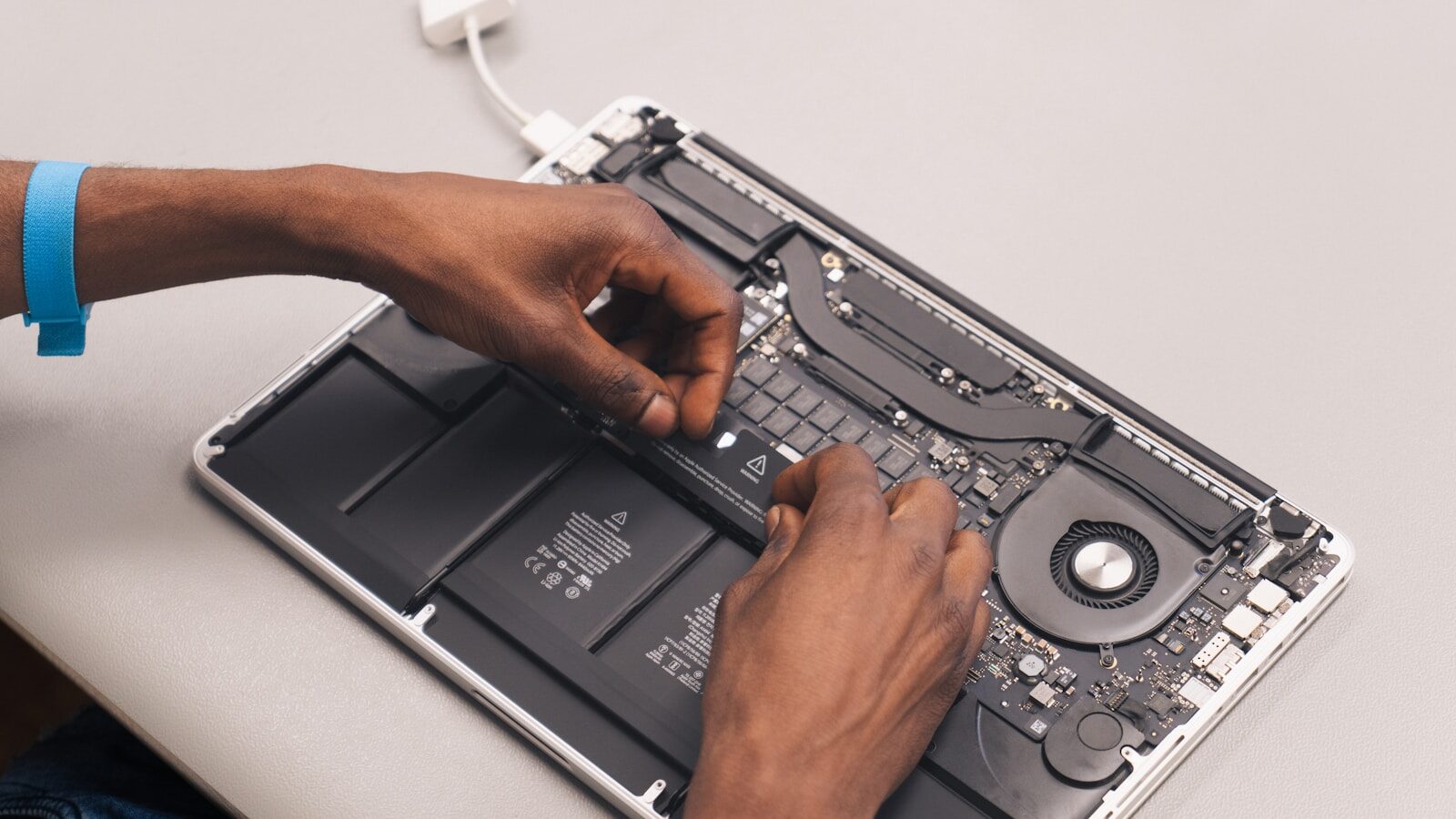
Everyday technology problems can feel unpredictable, but many of them can be diagnosed with the same basic process. Instead of changing several settings at once, start with simple checks, reproduce the problem, and eliminate possible causes one at a time.
This workflow can help with common laptop, phone, Wi-Fi, software, peripheral, and performance problems while reducing unnecessary changes that may make troubleshooting harder.
1. Start With the Simplest Checks
Before installing software, changing advanced settings, or opening a device, check the basics.
Depending on the problem, ask:
- Is the device receiving power?
- Is the charger connected correctly?
- Does the power outlet work?
- Are cables firmly connected?
- Is Wi-Fi actually enabled?
- Is the router online?
- Does another cable, charger, or port work?
Simple physical problems are easy to overlook when you immediately assume something complicated has failed.
For example, a laptop that does not charge may have a damaged cable, loose connector, faulty adapter, or unsuitable power source rather than a serious internal fault.
2. Restart the Device
A restart is one of the safest first troubleshooting steps for many temporary software problems.
Restarting can clear temporary processes, reload system services, and close applications that are no longer responding correctly.
If an app freezes, Wi-Fi behaves strangely, the interface becomes slow, or a device starts acting differently without an obvious reason, restart it before making more significant changes.
Do not rely on restarting repeatedly if the same problem immediately returns. A recurring issue usually needs further diagnosis.
3. Reproduce the Problem
Before attempting a fix, try to understand exactly what triggers the issue.
Repeat the action that caused the problem.
For example:
- Open the affected application.
- Connect to the same Wi-Fi network.
- Play the same video.
- Connect the same peripheral.
- Try charging the device again.
Pay attention to what happens immediately before the problem appears.
Ask:
- Does it happen every time?
- Does it affect only one application?
- Does it happen only on one network?
- Did it begin after an update?
- Does another device have the same problem?
The more precisely you can reproduce a problem, the easier it becomes to identify its cause.
4. Decide Whether the Problem Is Software or Hardware
You do not always need to know the answer immediately, but separating software symptoms from possible hardware problems can narrow the investigation.
Possible software-related signs
- One application repeatedly freezes.
- An error message appears during a specific action.
- The problem started after installing or updating software.
- The device works normally until a particular app opens.
- Browser extensions or background applications cause conflicts.
Possible hardware-related signs
- Visible physical damage
- Loose or damaged ports
- Unusual mechanical noises
- A swollen battery
- Persistent overheating
- A device that powers off unexpectedly
These are clues rather than absolute rules. Some symptoms can be caused by either hardware or software.
5. Check Storage, Memory, and Background Activity
A computer or phone can become slow when system resources are heavily used.
On a computer, check:
- CPU usage
- Memory usage
- Available storage
- Startup applications
- Background processes
Windows users can inspect many of these items through Task Manager.
On phones and tablets, battery and application usage screens can help identify apps that are unusually active.
Look for obvious patterns rather than immediately closing unfamiliar processes.
For example, very low free storage can affect performance, while one application consuming unusually high resources may point to a specific problem.
6. Check Available Storage Space
Storage problems are easy to miss.
A device with almost no free space may become slower, fail to install updates, or have difficulty creating temporary files.
Remove files you no longer need, empty unnecessary downloads, uninstall unused applications, and move large files elsewhere when appropriate.
Be careful when using automated cleanup tools. Review what they plan to remove before confirming deletion.
7. Troubleshoot One Application at a Time
If the problem affects only one program, focus on that program before changing the entire system.
Try:
- Closing and reopening the application.
- Checking for an update.
- Disabling unnecessary add-ons or extensions.
- Reviewing the application’s settings.
- Clearing temporary data when appropriate.
- Reinstalling the application if other steps fail.
Before resetting or reinstalling an application, make sure important local data, settings, or unsynchronized files will not be lost.
8. Check for Updates
Software updates can fix bugs, compatibility problems, and security vulnerabilities.
Check for updates to:
- The operating system
- The affected application
- Device drivers when relevant
- Router or device firmware when appropriate
However, timing matters.
If the problem began immediately after an update, check whether the update itself may be involved before installing additional software or making unrelated changes.
9. Think About What Changed Recently
One of the most useful troubleshooting questions is:
What changed just before the problem started?
Possible changes include:
- A new application
- A browser extension
- An operating system update
- A new peripheral
- A changed Wi-Fi network
- A new charger or cable
- A configuration change
If the timing is clear, temporarily reversing the most recent change can help determine whether it caused the problem.
Avoid changing several things at once because you may not know which change actually solved—or created—the issue.
10. Test With Another Cable, Port, Network, or Device
Comparison testing is one of the fastest ways to isolate a problem.
For example:
- Try another charging cable.
- Connect to another USB port.
- Test another Wi-Fi network.
- Try the peripheral on another computer.
- Test another charger with compatible specifications.
If the problem follows one cable or accessory, the accessory may be responsible.
If the same accessory works normally elsewhere, investigate the original device instead.
11. Use Safe Mode or a Minimal Startup When Appropriate
Some operating systems provide Safe Mode or another minimal startup environment.
These modes start the system with fewer drivers, services, or third-party applications.
If a problem disappears in a minimal environment, that suggests that software, a driver, startup item, or another optional component may be involved.
Safe Mode does not automatically identify the cause. It simply helps narrow the possibilities.
Procedures vary between operating systems, so follow the official instructions for your particular device.
12. Inspect Physical Components Carefully
If the problem appears hardware-related, perform only basic visual checks unless you are comfortable working with the device.
Inspect:
- Cables
- Connectors
- Ports
- Buttons
- Fans and ventilation openings
- Power adapters
Look for dirt, loose connections, bent connectors, visible damage, or blocked ventilation.
Do not open batteries, power supplies, or devices that may expose you to electrical or battery hazards.
13. Treat Battery Problems Seriously
A battery that is swollen, unusually hot, damaged, leaking, or producing a strong unusual odor should not be treated as a normal software problem.
Stop using the device and avoid puncturing, squeezing, or attempting to repair the battery yourself.
Follow the manufacturer’s guidance or contact an appropriate repair service.
14. Use Diagnostic Tools Only When They Answer a Specific Question
Diagnostic utilities can be useful, but installing many tools before understanding the problem often creates more confusion.
Use a diagnostic tool when you know what you want to check.
Examples include:
- Storage drive health
- Memory errors
- System resource usage
- Network signal and connection quality
- Malware or unwanted software
Whenever possible, begin with diagnostic features already included with the operating system or device.
If you install a third-party diagnostic program, download it from the developer’s official source and understand what it measures.
15. Search the Exact Error Message
If the device provides a specific error message or error code, record it exactly.
Do not search only for broad phrases such as:
laptop not working
A search containing the device model, application name, and exact error code is usually much more useful.
For example:
Windows application name error 0x...
or:
router model connection error
Prefer official manufacturer documentation and support pages when troubleshooting device-specific errors.
16. Make One Change at a Time
This is one of the most important troubleshooting habits.
If you simultaneously:
- Update the operating system
- Install new drivers
- Change network settings
- Remove applications
- Reset preferences
and the problem disappears, you may never know which action fixed it.
Instead:
- Make one reasonable change.
- Test the problem again.
- Record what happened.
- Continue only if necessary.
This makes troubleshooting more predictable and easier to reverse.
17. Back Up Important Data Before Major Changes
Basic checks normally do not require a backup.
However, before performing actions such as a factory reset, reinstalling an operating system, repartitioning storage, or making another destructive change, make sure important files are safely backed up.
Never assume that a repair process will preserve every file.
If the device shows signs of storage failure and contains important data, repeatedly stressing the drive may make recovery more difficult. In that situation, preserving the data may be more important than continuing ordinary troubleshooting.
18. Know When to Stop Troubleshooting
Not every technology problem should be repaired at home.
Consider professional help when you notice:
- A swollen or damaged battery
- Liquid damage
- Electrical burning smells
- Repeated unexplained shutdowns
- Serious physical damage
- Important data on a potentially failing storage device
- A problem that requires opening equipment you are not trained to service
Continuing to experiment can sometimes turn a manageable problem into a more expensive one.
A Simple Troubleshooting Workflow
When something stops working, follow this order:
- Check power, cables, connections, and basic settings.
- Restart the affected device.
- Reproduce the problem.
- Identify what changed recently.
- Determine whether the issue appears limited to hardware, software, an app, or a network.
- Check available storage and system resources.
- Test an alternative cable, port, network, or device when possible.
- Install relevant official updates.
- Use diagnostic or Safe Mode tools when they answer a specific question.
- Make one change at a time and test again.
- Back up important data before destructive repairs.
- Stop if there is physical damage or another safety concern.
Conclusion
Good troubleshooting is primarily a process of eliminating possibilities.
Start with simple explanations, reproduce the problem, identify what recently changed, and test one possibility at a time. Avoid immediately installing tools, resetting the device, or changing several settings together.
This approach will not solve every technical failure, but it can make common problems easier to diagnose and help you recognize when professional repair is the better option.
Find more practical technology guides in How-To.




