

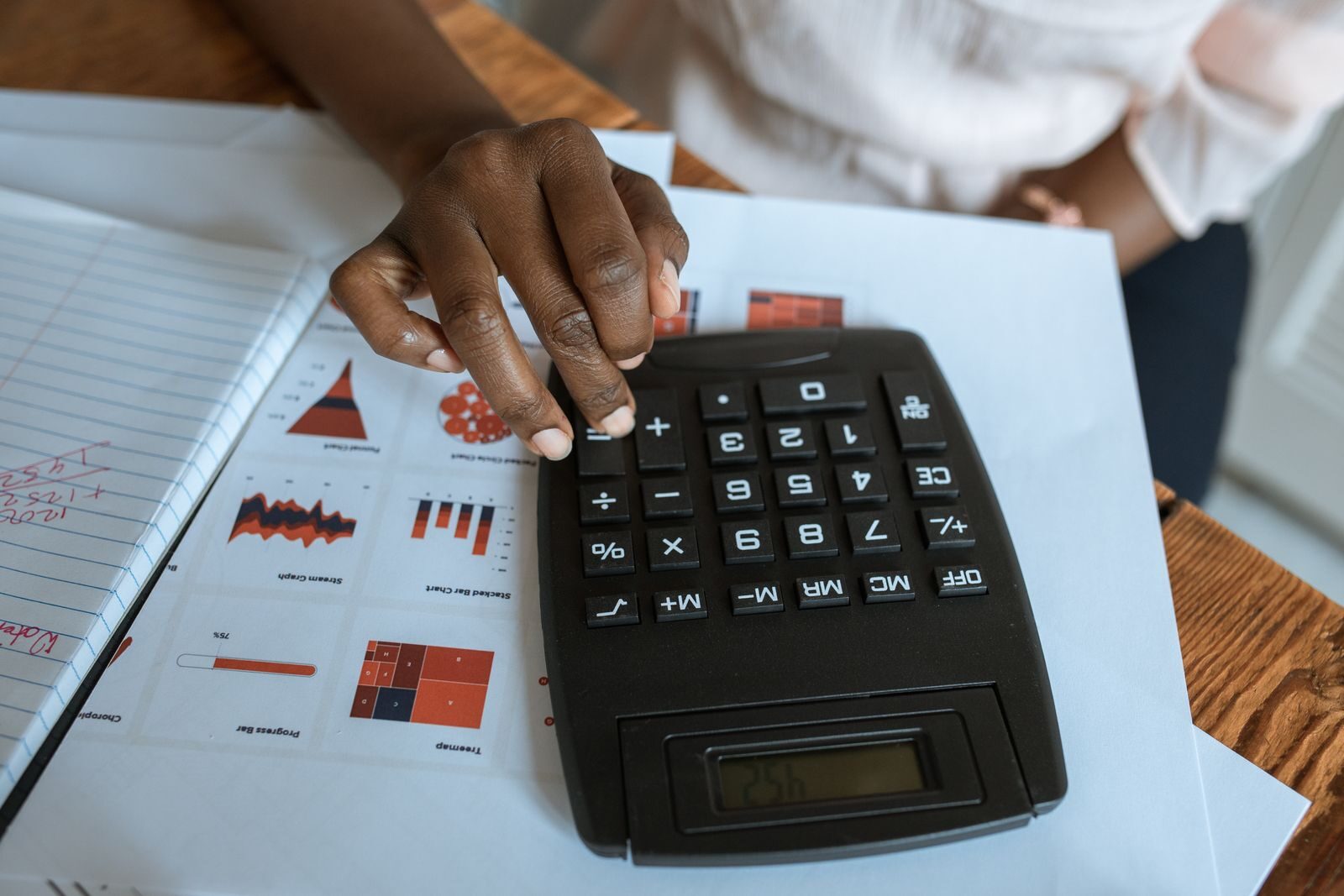
A personal budget spreadsheet does not need complicated formulas or financial software. A simple table can be enough to show how much money comes in each month, where it goes, and how much remains for savings or other goals.
The most useful budget is one that you can update regularly. Start with a small number of categories, compare planned and actual spending, and adjust the spreadsheet as you learn more about your real expenses.
Choose the Spreadsheet Tool
You can create a personal budget in almost any spreadsheet application, including Microsoft Excel, Google Sheets, LibreOffice Calc, or another program that supports basic formulas.
The specific software matters less than having a spreadsheet that is easy to access and update.
Create the Basic Columns
Start with a simple structure. You can create columns for:
- Category;
- Planned Amount;
- Actual Amount;
- Difference;
- Notes.
The planned amount shows what you expect to spend, while the actual amount records what really happened during the month.
The difference between the two helps you identify categories that were underestimated or overestimated.
Add Your Monthly Income
Create a section for all money you expect to receive during the month.
Income may include:
- salary;
- freelance income;
- business income;
- rental income;
- benefits or allowances;
- other regular payments.
If your income changes from month to month, use a conservative estimate rather than assuming the highest possible amount.
Separate Fixed Expenses
Fixed expenses are costs that stay relatively similar each month.
Common examples include:
- rent or mortgage;
- utilities;
- internet;
- phone plan;
- insurance;
- loan payments;
- subscriptions;
- childcare or regular tuition.
Listing these expenses first helps you see how much of your income is already committed before variable spending begins.
Add Variable Expenses
Variable expenses change more often and are usually the categories where a budget needs the most adjustment.
Examples include:
- groceries;
- restaurants and coffee;
- transportation;
- fuel;
- clothing;
- entertainment;
- personal care;
- household purchases.
Do not create too many categories at the beginning. A spreadsheet with dozens of tiny categories can become difficult to maintain.
Create a Savings Section
Savings should be visible in the spreadsheet rather than treated only as whatever remains at the end of the month.
You might create separate rows for:
- emergency savings;
- travel;
- home expenses;
- education;
- retirement;
- another personal goal.
Even if the planned amount is small, including savings in the budget makes the goal easier to track.
Add Debt Payments Separately
If you are paying credit cards, personal loans, or other debt, keep those payments visible in their own section.
This makes it easier to distinguish between normal monthly spending and money that is being used to reduce existing balances.
You can include both the required minimum payment and any additional amount you plan to pay.
Calculate Total Income
At the bottom of the income section, use a simple SUM formula to calculate total monthly income.
For example, if your income values are in cells B2 through B5, the formula might look like:
=SUM(B2:B5)Your exact cell range will depend on the layout of the spreadsheet.
Calculate Total Expenses
Use the same approach to total fixed expenses, variable expenses, savings, and debt payments.
You can also calculate one overall expense total for the month.
This gives you a quick view of how much money is planned to leave the budget.
Calculate the Remaining Balance
One of the most useful numbers in the spreadsheet is the amount remaining after expenses.
The basic calculation is:
Total Income - Total ExpensesIf your income total is in cell B10 and expenses are in B30, the formula could be:
=B10-B30A positive result means planned income is greater than planned spending. A negative result means the budget needs adjustment.
Compare Planned and Actual Spending
During the month, enter the actual amount spent in each category.
Then calculate the difference between the planned and actual values.
For example:
=Planned Amount - Actual AmountThis makes it easy to see where spending was higher or lower than expected.
Do Not Treat Every Difference as a Problem
A budget is an estimate, not a prediction that must be perfectly accurate.
Some months will include higher grocery bills, travel, medical costs, repairs, gifts, or other irregular expenses.
The purpose of comparing planned and actual spending is to improve the next budget, not to judge every variation as a failure.
Add a Category for Irregular Expenses
Some costs do not occur every month but are predictable over the year.
Examples include:
- car registration;
- annual insurance;
- holiday gifts;
- school expenses;
- home maintenance;
- annual subscriptions.
You can estimate the annual cost and divide it by 12 to create a monthly amount.
This helps prevent irregular expenses from feeling completely unexpected when they arrive.
Use Simple Formatting
A budget should be easy to read.
Use clear section headings and consistent number formatting. You may also use bold text for totals or lightly separate income, expenses, and savings sections.
Avoid excessive colors and complex formatting that makes the spreadsheet harder to update.
Freeze the Header Row
If the spreadsheet becomes longer, freezing the top row can make it easier to remember which column represents planned spending, actual spending, and the difference.
Most spreadsheet programs include a Freeze or Freeze Panes option.
Add Notes for Unusual Expenses
A Notes column can help explain why a category was unusually high or low.
For example:
- “car repair”;
- “annual insurance payment”;
- “birthday gift”;
- “travel month.”
These notes make the monthly review more useful because you can distinguish one-time expenses from normal spending patterns.
Create a New Sheet for Each Month
One simple method is to create a separate worksheet for every month.
Name the tabs January, February, March, and so on.
Once the first sheet is set up correctly, duplicate it for the next month and clear only the actual spending amounts.
This saves time and keeps the structure consistent.
Keep a Yearly Summary
Once you have several months of data, create a separate sheet called Yearly Summary.
You can record:
- monthly income;
- monthly expenses;
- monthly savings;
- debt payments;
- remaining balance.
This makes it easier to see patterns that may not be obvious when looking at a single month.
Review the Budget at the End of the Month
At the end of each month, spend a few minutes comparing the plan with the actual numbers.
Ask:
- Which categories were consistently too low?
- Which categories were higher than necessary?
- Did any irregular expense appear?
- Did I save the amount I planned?
- Does next month’s budget need different priorities?
Use the answers to adjust the next month rather than simply copying the same numbers again.
Do Not Make the Spreadsheet Too Complicated
Complex formulas, dashboards, charts, and automation can be useful later, but they are not necessary for the first version.
A basic spreadsheet that you update every month is more useful than an elaborate system that becomes too difficult to maintain.
Personal Budget Spreadsheet Checklist
- Create columns for planned and actual amounts.
- List all regular income.
- Separate fixed and variable expenses.
- Add savings and debt payments.
- Calculate total income and expenses.
- Calculate the remaining balance.
- Track the difference between planned and actual spending.
- Add irregular expenses to the plan.
- Use simple formatting and clear categories.
- Review and adjust the budget each month.
Conclusion
A personal budget spreadsheet can be very simple. Start with income, fixed costs, variable spending, savings, and debt payments, then compare your planned amounts with what actually happened.
As you review the spreadsheet each month, adjust unrealistic categories and gradually build a budget that reflects your real spending rather than an ideal version of it.
For more practical step-by-step guides, explore the How-To section on Howzora.




