

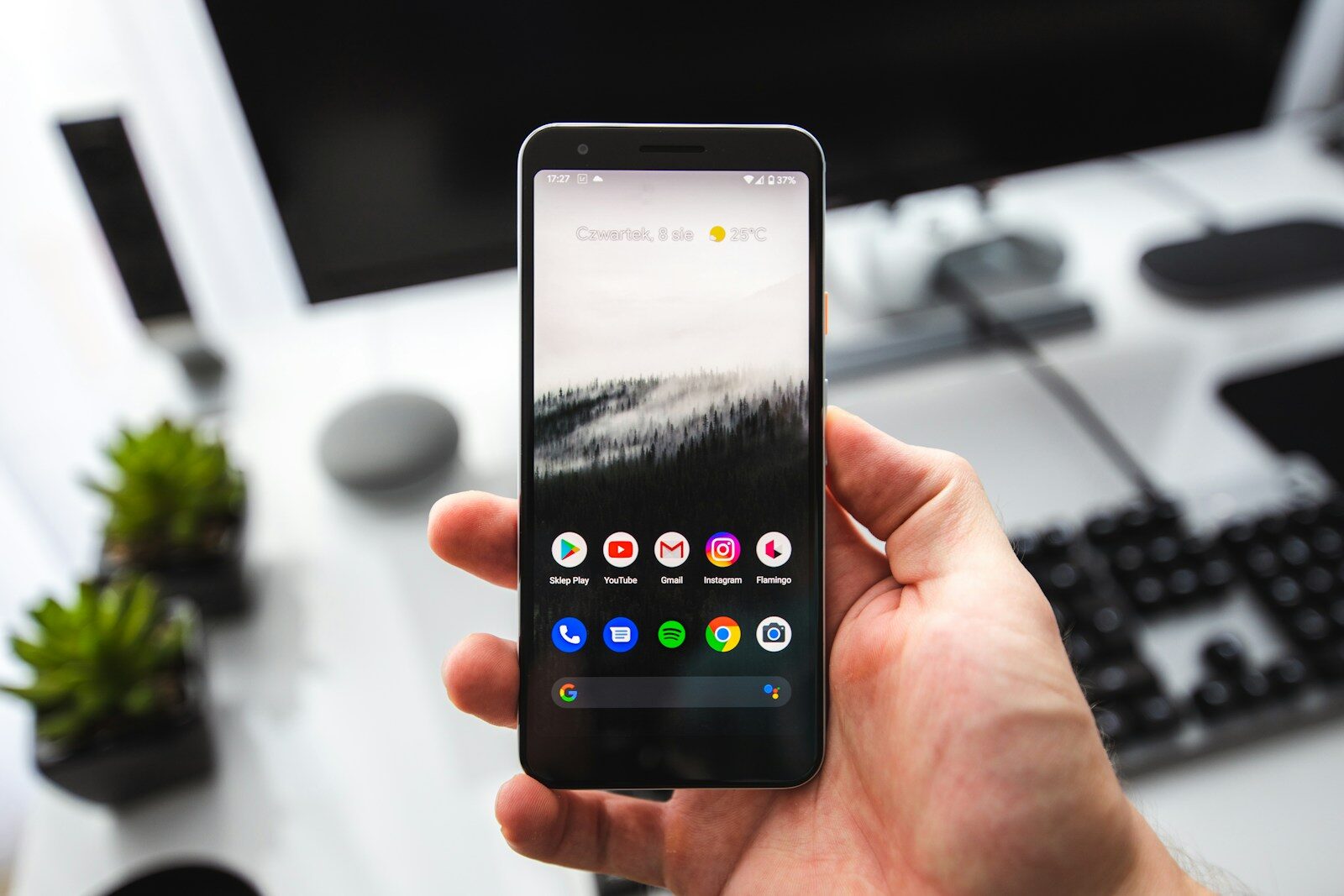
An Android phone that has become slow does not necessarily need to be replaced. Lag, delayed app loading, freezing, and poor responsiveness can come from low storage space, a problematic app, outdated software, background activity, overheating, or simply hardware that is beginning to struggle with newer applications.
The safest approach is to diagnose the problem gradually rather than installing “RAM boosters” or changing advanced Android settings immediately.
Here is a practical step-by-step process for speeding up a slow Android phone in 2026.
1. Restart the Phone First
If your phone suddenly feels slower than usual, restart it before changing anything else.
A restart can clear temporary problems and reload system processes.
After restarting, use the phone normally for a few minutes and check whether the slowdown returns.
If it becomes slow again quickly, continue with the next steps rather than repeatedly restarting it.
2. Check How Much Storage Is Free
Very low storage can cause Android devices to behave poorly.
Open:
Settings → Storage
The exact menu name may vary depending on the manufacturer.
Look at how much storage remains available.
If the device is almost full, start by removing files you no longer need.
Useful places to check include:
- Downloads
- Large videos
- Old screenshots
- Offline media
- Unused applications
- Duplicate files
Try to maintain reasonable free space rather than filling the phone completely.
3. Remove Apps You No Longer Use
Applications accumulate over time.
Some may remain installed even though you have not opened them for months.
Review the app list and remove software you genuinely no longer need.
Depending on the phone:
Settings → Apps
Then select an app and look for:
- Uninstall
- Disable
Some manufacturer-installed applications cannot be completely removed.
Do not disable system applications simply because you do not recognize their names.
4. Use Android’s App Archiving When Available
Newer Android versions can archive applications that you rarely use.
Archiving removes part of the application to free storage while keeping its icon and associated user data so it can be restored later.
This can be useful when you want to free space without permanently removing every rarely used application.
Availability depends on the Android version and device.
5. Update Android
Software updates can contain:
- Bug fixes
- Security updates
- Compatibility improvements
- Performance fixes
On many Android phones, you can check through:
Settings → System → Software update
The exact location differs between manufacturers.
Install important updates available for your device and restart when requested.
6. Update Your Apps
An outdated application can sometimes become unstable or behave poorly after other parts of the system change.
Open the Google Play Store and go to:
Profile → Manage apps & device
Review available updates.
You do not necessarily need to update everything immediately while troubleshooting, but applications that are crashing, freezing, or behaving strangely should be checked first.
7. Identify Whether One App Is Causing the Slowdown
Ask when the phone becomes slow.
Does it happen:
- Everywhere?
- Only while using one app?
- After opening a particular game?
- While browsing?
- Only after installing something recently?
If the rest of the phone works normally but one application is slow, focus on that application first.
Try:
- Close and reopen the app.
- Update it.
- Restart the phone.
- Clear its cache if necessary.
- Reinstall it if important local data is safely backed up.
8. Clear an App’s Cache Only When It Helps
Cache files contain temporary information that can help applications work faster.
You do not need to constantly clear every app’s cache.
However, clearing the cache can sometimes help when one specific application is:
- Crashing
- Loading incorrectly
- Using unusually large amounts of storage
- Behaving differently than expected
Depending on the phone:
Settings → Apps → [App] → Storage & cache → Clear cache
Be careful not to confuse:
Clear cache
with:
Clear storage / Clear data
Clearing storage can remove the application’s locally stored data and settings.
9. Do Not Constantly Force Stop Apps
Android is designed to manage background applications automatically.
You generally do not need to manually force stop apps just because they appear in the recent-apps list.
Force Stop is more useful when a specific application:
- Is frozen
- Will not close normally
- Is behaving incorrectly
Repeatedly force-stopping normal applications is not a general performance strategy.
10. Check Battery Usage for Abnormal Apps
An application that remains unusually active in the background may affect both battery life and performance.
Open your battery settings and review app usage.
Look for an application consuming much more power than expected.
A high number does not automatically mean something is wrong.
Games, video streaming, navigation, cameras, and other demanding applications naturally use more power while you are actively using them.
Focus on apps that appear unusually active when you have barely used them.
11. Check Whether the Phone Is Overheating
Modern processors may reduce their performance when the device becomes too hot.
This is known as thermal throttling.
Your phone may become slower while:
- Gaming
- Recording video
- Using navigation
- Charging under heavy load
- Sitting in direct sunlight
- Installing large updates
If the phone is unusually hot, stop demanding tasks and allow it to cool naturally.
Do not place an overheated phone in a refrigerator or freezer.
If you notice battery swelling, a burning smell, smoke, or visible deformation, stop using the device and seek appropriate repair assistance.
12. Remove Problematic Widgets and Live Backgrounds
Widgets and animated wallpapers are usually not a major performance problem on modern phones.
However, an older or low-powered device can struggle when several continuously updating widgets and visual effects are active.
If your home screen contains many:
- News widgets
- Weather widgets
- Social widgets
- Live wallpapers
temporarily remove some and see whether the interface becomes smoother.
13. Reduce Animations Only if You Prefer the Effect
Reducing Android animations can make the interface feel faster because transitions finish more quickly.
This does not actually increase processor performance.
Developer Options may allow advanced users to adjust animation scales, but this is optional and should not be presented as a necessary Android optimization.
If you do not know what another Developer Options setting does, leave it unchanged.
Do not randomly change background-process limits, graphics settings, or system behavior in an attempt to gain performance.
14. Avoid RAM Booster and Task-Killer Apps
Apps that promise to:
- Boost RAM
- Increase CPU speed
- Automatically kill background apps
- Make your phone several times faster
should be treated cautiously.
Android already manages memory and background applications.
Repeatedly killing apps can sometimes cause them to reload again, creating more work instead of improving performance.
Use Android’s built-in storage and battery-management tools before installing another optimization application.
15. Be Careful With Cleaner Apps
A storage-management application can help identify:
- Large files
- Downloads
- Unused applications
- Duplicate content
But avoid applications that promise unrealistic performance improvements or request permissions unrelated to file management.
The goal is to remove genuinely unnecessary data, not to constantly “clean” system files.
16. Check Whether the Internet Is Actually the Problem
Sometimes the phone feels slow when the device itself is working normally.
For example:
- Websites load slowly.
- Videos buffer.
- Social feeds take a long time to refresh.
This may indicate a slow network rather than a slow phone.
Test:
- Wi-Fi
- Mobile data
- Another Wi-Fi network
If applications respond quickly but online content loads slowly, troubleshoot the connection instead of deleting apps or resetting the phone.
17. Use Safe Mode to Find a Problem App
If the phone became slow after installing an application but you cannot identify the cause, Safe Mode can help.
Safe Mode temporarily disables downloaded third-party applications.
If the phone works normally in Safe Mode, a downloaded app is likely contributing to the problem.
The method for entering Safe Mode varies by manufacturer.
Use the official support instructions for your particular phone.
After leaving Safe Mode, remove recently installed applications one at a time and test the phone after each change.
18. Check Whether the Phone Is Still Receiving Updates
Older Android phones eventually stop receiving operating-system and security updates.
A phone can continue working after official support ends, but newer applications may gradually become more demanding or stop supporting older Android versions.
Check the manufacturer’s support information for your model.
If performance problems come from very old hardware rather than one app or configuration issue, software cleanup may provide only limited improvement.
19. Consider the Hardware Limits
Software optimization cannot overcome every hardware limitation.
An older phone may have:
- A slower processor
- Less RAM
- Slower internal storage
- An aging battery
- Older graphics hardware
If the phone has always been slow with demanding applications, changing settings may not transform its performance.
The goal is to determine whether performance has recently become worse or whether the hardware simply no longer matches the applications you want to run.
20. Back Up Important Information Before Major Changes
Before uninstalling important apps, clearing app storage, or performing a factory reset, check that essential information is safely backed up.
Depending on your phone, this can include:
- Photos
- Contacts
- Messages
- Documents
- Authenticator accounts
- Application data
Open several backed-up items from another location when possible to confirm the backup actually worked.
21. Factory Reset Only as a Last Resort
A factory reset removes personal data and returns the phone to its initial software setup.
It can sometimes help when persistent software or configuration problems cannot be identified.
It should not be an early performance step.
Before resetting:
- Back up important data.
- Confirm photos and contacts are synchronized.
- Transfer authenticator accounts.
- Make sure you know your Google Account credentials.
- Check important app recovery methods.
Reset menus differ between phones, so follow the manufacturer’s instructions.
A factory reset may solve some software problems, but it cannot repair aging hardware, a damaged battery, or a failing storage component.
A Safe Order for Speeding Up an Android Phone
Try these steps in order:
- Restart the phone.
- Check available storage.
- Remove apps and files you no longer need.
- Update Android and important apps.
- Identify whether one application causes the slowdown.
- Clear that app’s cache if appropriate.
- Check battery usage and overheating.
- Test the phone in Safe Mode if you suspect a downloaded app.
- Back up important information.
- Consider a factory reset only if simpler troubleshooting fails.
Quick Android Performance Checklist
- Keep reasonable free storage available.
- Remove applications you no longer use.
- Keep Android and important apps updated.
- Do not constantly kill background apps.
- Clear cache only when troubleshooting a specific application.
- Avoid aggressive RAM booster and cleaner apps.
- Check whether poor network performance is being mistaken for a slow phone.
- Watch for overheating.
- Use Safe Mode to isolate a suspected third-party app.
- Back up important data before resetting the device.
Conclusion
A slow Android phone is usually easier to troubleshoot when you start with storage, updates, and individual applications rather than advanced settings or performance-booster apps.
Restart the device, make sure it has enough free storage, remove software you no longer use, update the system, and identify whether a particular application is causing the slowdown.
If the problem disappears in Safe Mode, focus on recently installed apps.
A factory reset should remain one of the final options, not the first.
If the phone remains consistently slow after a clean setup, the limitation may be the hardware itself rather than something that can be fixed through another optimization setting.
Find more practical mobile and software guides in Apps & Software.




