

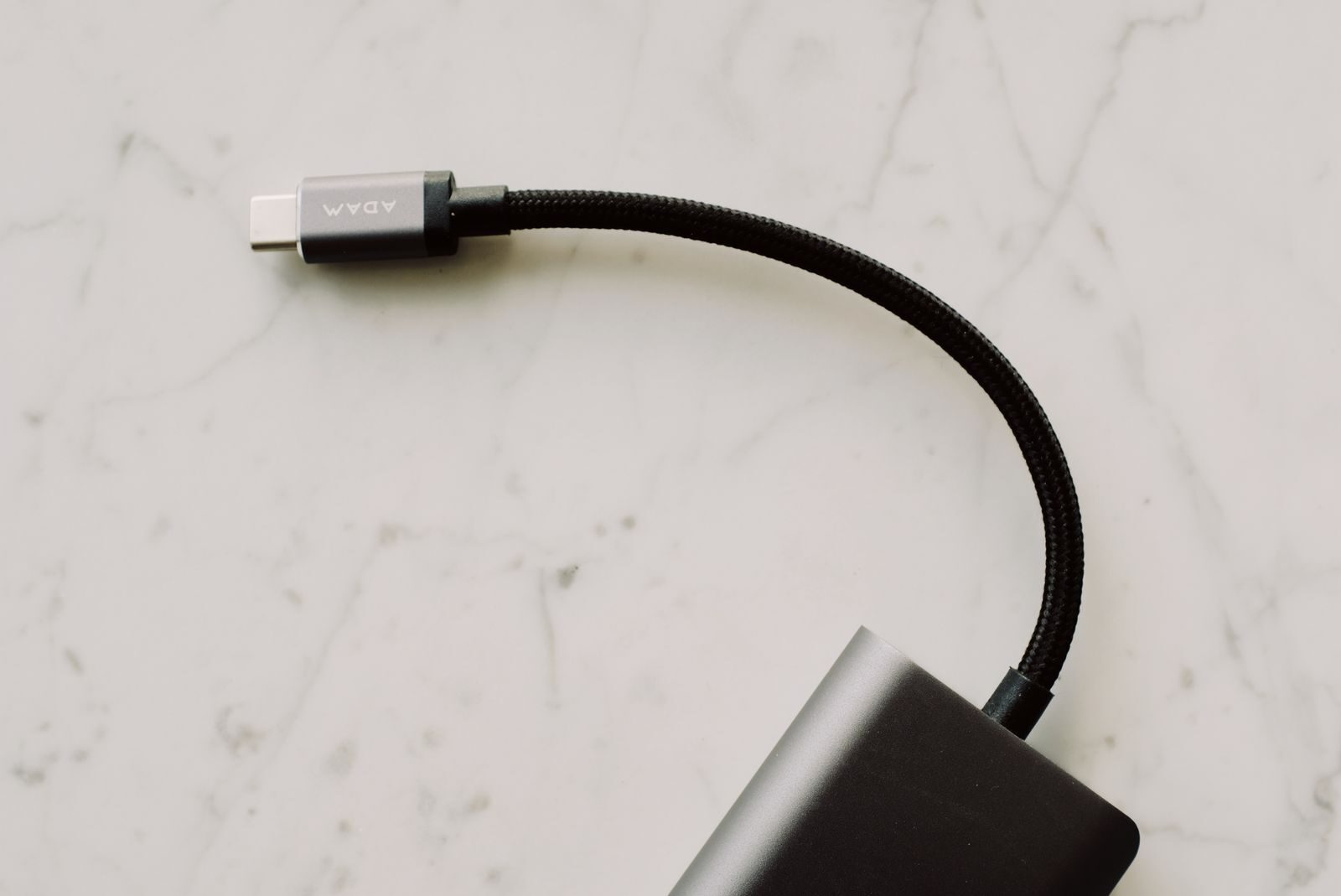
USB-C has become one of the most common connectors on phones, laptops, tablets, monitors, docks, and accessories. The confusing part is that two USB-C ports or cables can look completely identical while supporting very different features.
USB-C describes the shape of the connector. It does not automatically tell you the charging power, data speed, display support, or other capabilities of a particular port or cable.
Understanding that difference can help you avoid buying a cable that charges correctly but transfers files slowly, or connecting a monitor to a USB-C port that does not support video output.
USB-C Describes the Connector Shape
The term USB-C primarily refers to the small reversible connector that can be inserted in either orientation.
However, the connector itself can be used with several different USB standards and optional technologies.
A USB-C port may support some combination of:
- device charging;
- USB data transfer;
- USB Power Delivery;
- DisplayPort video output;
- USB4;
- Thunderbolt;
- connection to docking stations and other accessories.
The important point is that these features are not guaranteed simply because the connector is USB-C.
Two USB-C Ports Can Have Different Capabilities
A laptop may have several USB-C ports that look identical while behaving differently.
For example, one port might support charging, high-speed data, and an external monitor, while another may provide only data transfer.
This is why checking the specifications of the device is often more reliable than judging the port by appearance.
USB-C Data Speeds Can Vary Significantly
USB-C can carry data using several generations of USB technology.
Depending on the device and cable, speeds may range from older USB 2.0-level performance to much faster USB and USB4 connections.
You may encounter specifications such as:
- USB 2.0 – up to 480 Mb/s;
- USB 5Gbps;
- USB 10Gbps;
- USB 20Gbps;
- USB4 connections with much higher supported speeds.
The maximum real-world speed is limited by the slowest part of the connection: the computer port, cable, connected device, or storage hardware.
For example, connecting a fast external SSD with a high-speed cable will not produce high-speed transfers if the computer’s USB-C port supports only a slower USB standard.
USB-C Cables Also Have Different Data Capabilities
The port is only half of the connection. The cable matters too.
Some USB-C cables are intended mainly for charging and may provide only relatively slow data transfer. Others are designed for high-speed external storage, docks, displays, or USB4 devices.
This means that replacing one USB-C cable with another can sometimes change how a device behaves even though both connectors fit perfectly.
Charging Speed Depends on the Charger, Cable, and Device
USB-C can support anything from basic charging to high-power laptop charging, but all parts of the charging setup need to be compatible.
The three important components are:
- the charger;
- the USB-C cable;
- the phone, tablet, laptop, or other device.
If one component supports less power than the others, it may limit the charging speed.
For example, using a low-power phone charger with a laptop may result in very slow charging or may not provide enough power to charge the computer while it is being used.
What Is USB Power Delivery?
USB Power Delivery, often shortened to USB PD, is a charging system that allows compatible devices and chargers to negotiate an appropriate amount of power.
This is why one USB-C charger can sometimes safely charge several different types of devices.
A compatible laptop can request more power than a phone, while the phone requests only what it supports.
Modern USB Power Delivery specifications can support very high power levels, including charging for compatible laptops and other demanding devices.
A Higher-Power Charger Does Not Automatically Mean Faster Charging
Using a charger capable of delivering more power does not automatically make every device charge faster.
The device controls how much supported power it requests.
For example, connecting a phone that supports a lower charging rate to a much more powerful USB-C laptop charger does not mean the charger simply pushes its maximum output into the phone.
Charging speed still depends on the standards supported by both devices and the cable between them.
Some High-Power Cables Have Additional Identification Electronics
USB-C cables designed for higher charging power or advanced high-speed operation may contain an electronic marker, often called an e-marker.
This allows connected devices to identify certain capabilities of the cable.
For demanding uses such as high-power laptop charging, buy a cable whose specifications clearly state the supported charging capacity rather than assuming that every USB-C cable is equivalent.
USB-C Can Carry Video, but Not Every Port Does
One of the most confusing USB-C features is external-display support.
Some USB-C ports can send a video signal to a monitor using technologies such as DisplayPort Alt Mode. Other USB-C ports cannot output video at all.
If you connect a USB-C-to-HDMI or USB-C-to-DisplayPort adapter and nothing appears on the monitor, the adapter may not be the problem. The USB-C port itself may not support display output.
Check Whether Your USB-C Port Supports DisplayPort Alt Mode
If you plan to connect a monitor through USB-C, check the device manufacturer’s specifications for terms such as:
- DisplayPort over USB-C;
- DisplayPort Alt Mode;
- video output;
- Thunderbolt;
- USB4 with display support.
Some devices also use symbols near the port, although labels are not always present or easy to interpret.
USB-C Monitors Can Combine Several Functions
A compatible USB-C monitor may be able to carry video, data, and charging through one cable.
For example, one connection between a laptop and monitor may:
- send the video signal to the monitor;
- charge the laptop;
- connect USB devices attached to the monitor.
This can significantly reduce the number of cables on a desk, but both the laptop and monitor must support the required features.
What About Thunderbolt?
Modern Thunderbolt connections can also use the USB-C connector, which creates another source of confusion.
A Thunderbolt port may look exactly like an ordinary USB-C port but support additional high-speed data, display, and docking capabilities.
However, the USB-C connector alone does not mean that a device supports Thunderbolt.
Check the computer’s specifications or port markings before buying Thunderbolt-specific accessories.
USB4 Also Uses USB-C
USB4 is another modern USB technology that uses the USB-C connector.
It can provide significantly higher performance and more flexible handling of data and display traffic than older USB connections.
Again, seeing a USB-C connector does not automatically mean the port supports USB4.
Docking Stations Depend on the Host Port
A USB-C docking station may advertise multiple monitors, Ethernet, high-speed USB ports, charging, and other features.
Those features still depend on what the laptop’s USB-C port supports.
Before buying a dock, check:
- whether the laptop supports video through that USB-C port;
- the maximum number of supported external displays;
- the USB or Thunderbolt version;
- the charging power required by the laptop;
- the resolutions and refresh rates supported by the dock.
Why a USB-C Cable May Charge but Not Connect a Monitor
This is a common situation.
A cable may be perfectly capable of delivering power while lacking the data or display capabilities required for a USB-C monitor.
If charging works but video does not, check both the cable specification and the capabilities of the computer’s USB-C port.
Why File Transfers May Be Surprisingly Slow
If an external SSD or phone transfers files much more slowly than expected, the USB-C connector itself does not guarantee high speed.
Possible bottlenecks include:
- a USB 2.0-speed cable;
- a slower USB-C port;
- a slow storage device;
- a dock or adapter with limited bandwidth.
For high-speed external storage, check the rated data speed of every major component in the connection.
How to Choose the Right USB-C Cable
Instead of buying a cable based only on length and connector type, decide what you need it to do.
For phone charging
Check the charging standard and power level supported by your phone and charger.
For laptop charging
Choose a cable rated for the required charging power of the laptop.
For external SSDs
Look for a cable with a data speed that matches the capabilities of the storage device and computer.
For monitors
Confirm that the cable supports the display connection required by the monitor and laptop.
For docks
Use a cable that supports the dock’s required data, display, and charging capabilities.
Do Not Judge a Cable Only by Its Appearance
Two black one-meter USB-C cables can have completely different specifications.
One may be suitable only for everyday charging while another supports high-speed data, laptop charging, and external displays.
Keep cables with specialized capabilities labeled if you own several similar-looking ones.
Check the Manufacturer’s Specifications
When USB-C behavior is unclear, the device manual or manufacturer’s technical specification page is usually the best source.
Look for information about:
- USB version and data speed;
- Power Delivery;
- maximum charging power;
- DisplayPort Alt Mode;
- USB4;
- Thunderbolt.
This is more reliable than assuming every feature is supported because the port has a USB-C shape.
USB-C Checklist
- Remember that USB-C describes the connector, not every supported feature.
- Check the data speed supported by both the port and cable.
- Match charging power to the charger, cable, and device.
- Confirm video-output support before buying a monitor adapter.
- Do not assume every USB-C port supports Thunderbolt or USB4.
- Check dock compatibility with your specific computer.
- Buy clearly specified cables for high-speed data or high-power charging.
- Label specialized cables if several look identical.
Conclusion
USB-C makes it possible to use one compact connector for charging, data, displays, and many accessories, but the identical connector shape can hide major differences in capability.
Before buying a charger, cable, monitor adapter, external drive, or dock, check what the device’s USB-C port actually supports and match the accessory to those requirements. A few minutes checking specifications can prevent many of the most common USB-C compatibility problems.
For more clear explanations of everyday technology, explore the Tech section on Howzora.




