

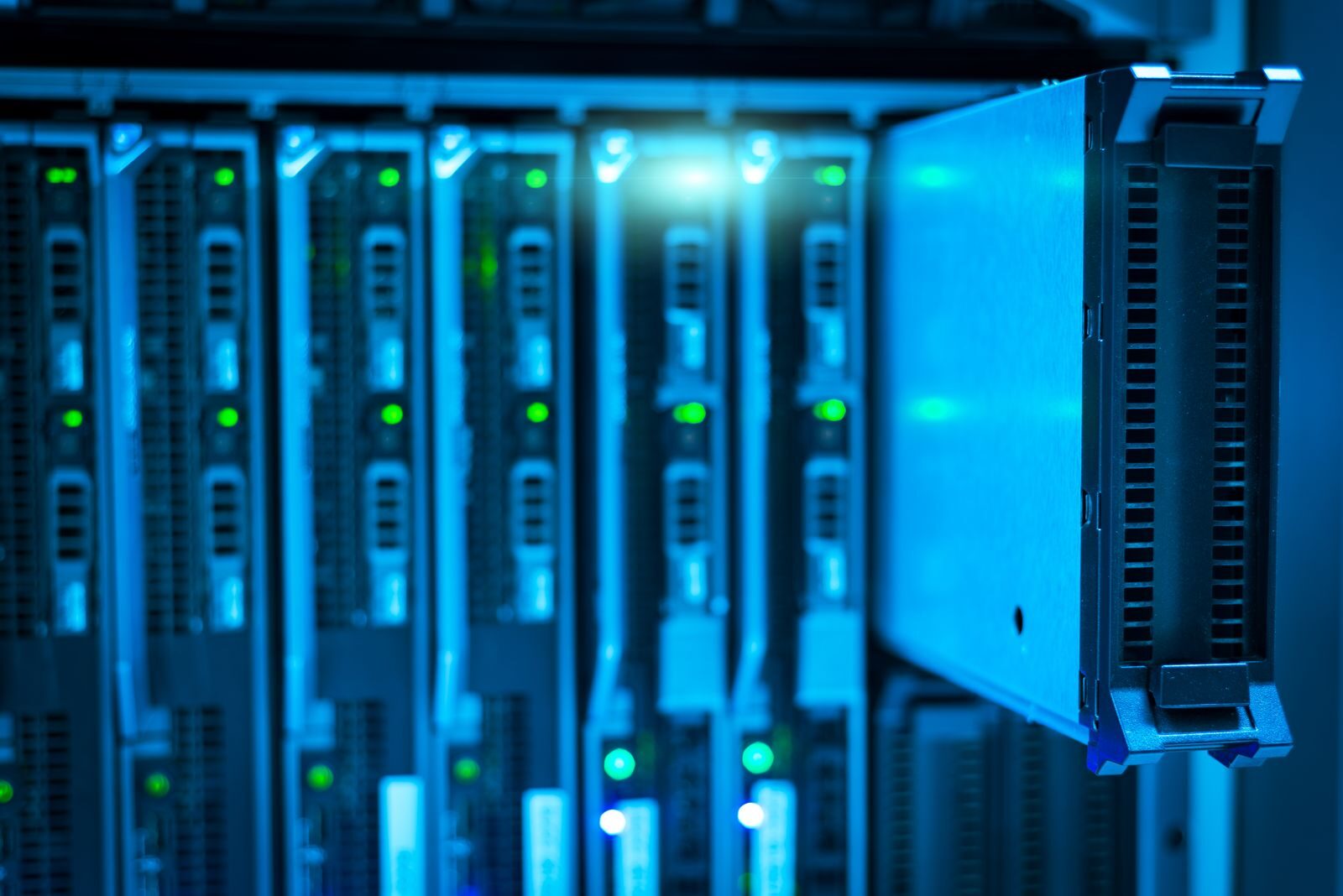
A NAS, or network-attached storage device, is a small computer designed mainly to store files and make them available to other devices on the same network. Instead of connecting an external drive separately to each computer, a NAS can provide one central place for documents, photos, backups, videos, and other household files.
NAS systems can be very useful, but they are not necessary for everyone. For a person with one computer and a modest amount of data, an external drive combined with cloud backup may be simpler and less expensive. A NAS becomes more attractive when several devices need access to the same storage or when the household has a large and growing collection of files.
What Does NAS Mean?
NAS stands for Network-Attached Storage.
Unlike a normal external hard drive, which is usually connected directly to one computer with USB, a NAS connects to your home network. Computers, phones, tablets, smart TVs, and other authorized devices can then access files stored on it.
The NAS normally has its own processor, memory, operating system, network connection, and one or more storage drives.
How Does a NAS Work?
A typical home NAS connects to your router or network switch with an Ethernet cable.
Once configured, it appears to compatible devices as network storage. You can create folders and decide which users or devices are allowed to access them.
For example, you might create separate folders for:
- family photos;
- documents;
- computer backups;
- movies and music;
- shared household files;
- private folders for individual users.
This allows several people to use the same storage without passing external drives from one computer to another.
What Is the Difference Between a NAS and an External Drive?
An external drive is usually the simpler option. You connect it directly to a computer, copy files, and disconnect it when finished.
A NAS is designed to remain available through the network.
The main difference is convenience and shared access.
| External Drive | NAS |
|---|---|
| Usually connects to one device at a time | Available to multiple network devices |
| Simple setup | Requires network configuration |
| Usually cheaper | Higher initial cost |
| Good for basic backups | Useful for shared storage and automated backups |
| Usually little maintenance | Needs updates and account management |
Common Home Uses for a NAS
A NAS can serve several purposes at the same time.
Central Photo Storage
Families can keep large photo and video collections in one location rather than spreading them across several laptops, phones, and external drives.
Some NAS systems also provide applications for automatically uploading photos from mobile devices.
Computer Backups
A NAS can be used as a destination for scheduled computer backups.
This is convenient when several computers in the same household need regular backups because each device can send its backup to the same network storage.
Shared Documents
A NAS can hold household documents that need to be available from more than one computer.
Examples might include scanned documents, household records, shared projects, recipes, or family archives.
Media Storage
Large collections of movies, music, and videos can consume significant computer storage.
A NAS can provide central storage for these files, and some models support media-server software that can stream compatible content to televisions and other devices.
What Are NAS Bays?
When comparing NAS devices, you will often see descriptions such as 2-bay, 4-bay, or 6-bay.
A bay is simply a space for one storage drive.
A two-bay NAS can normally hold two drives, while a four-bay system can hold four.
More bays provide greater flexibility for storage capacity and drive configurations, but they also increase the cost of the system.
Do You Need Special Hard Drives?
Many NAS systems use standard-sized hard drives or SSDs, but manufacturers also sell drives specifically designed for continuous NAS use.
Before buying drives, check the NAS manufacturer’s compatibility list and maximum supported capacity.
The NAS enclosure itself is sometimes sold without drives, so remember to include storage drives when calculating the total cost.
What Is RAID?
NAS devices with multiple drives often support RAID configurations.
RAID can distribute or mirror data across several drives depending on the selected configuration.
One common goal is to allow the system to continue operating if one drive fails.
However, RAID is important to understand correctly:
RAID is not a complete backup.
If files are accidentally deleted, corrupted, encrypted by malware, or the entire NAS is stolen or damaged, RAID alone may not protect the data.
A NAS Is Not Automatically a Backup
This is one of the most important points when considering network storage.
Moving all your photos and documents from several computers onto one NAS creates centralized storage, but it does not automatically create multiple independent copies.
Important data should still exist somewhere else.
A stronger setup may include:
- the working files on the NAS;
- another backup on an external drive;
- a cloud or off-site copy of irreplaceable files.
This protects against more than just individual hard-drive failure.
Can You Access a NAS Away From Home?
Many NAS systems offer remote-access features that allow you to reach files while away from your home network.
This can be convenient, but remote access also introduces additional security considerations.
If you enable it:
- use strong, unique account passwords;
- enable multi-factor authentication when available;
- keep the NAS operating system updated;
- disable services you do not use;
- avoid exposing unnecessary management interfaces directly to the internet.
If you do not need remote access, leaving it disabled can simplify the setup.
NAS Maintenance
A NAS is more like a small server than a passive external hard drive, so it requires some maintenance.
Occasionally check:
- system updates;
- drive health warnings;
- available storage space;
- backup status;
- user accounts and permissions;
- security notifications.
Do not wait until the storage is completely full or a drive has already failed before checking the system.
Who Benefits Most From a NAS?
A NAS makes the most sense when several of the following are true:
- your household uses several computers or devices;
- you have a large photo or video collection;
- multiple people need access to shared files;
- you want automatic backups from several computers;
- you prefer storing large files locally;
- your storage requirements are growing;
- you are comfortable managing basic network settings.
Who Probably Does Not Need a NAS?
A NAS may be unnecessary if you use only one main computer and have a relatively small amount of data.
For many people, a simpler combination of an external backup drive and cloud storage already provides everything they need.
A NAS also adds cost. You may need to buy the enclosure, storage drives, and possibly replacement drives later. It also uses electricity and requires occasional maintenance.
NAS vs Cloud Storage
NAS and cloud storage solve some of the same problems, but they work differently.
With cloud storage, another company operates the servers and you normally pay for storage as a service.
With a NAS, the hardware is located in your home and you manage it yourself.
A NAS gives you more local control and can be attractive for large file collections, while cloud storage usually requires less technical maintenance and makes remote access easier.
Many households benefit from using both rather than treating them as competing solutions.
What to Consider Before Buying a NAS
Before spending money, think about:
- how much storage you need today;
- how quickly your data collection is growing;
- how many drive bays you need;
- whether drives are included;
- which computers and phones will connect to it;
- whether you need media streaming;
- whether you need remote access;
- how you will back up the NAS itself.
Buying a powerful NAS without identifying a real use for it can create unnecessary expense and maintenance.
Home NAS Checklist
- Estimate your current and future storage needs.
- Decide which devices need shared access.
- Choose an appropriate number of drive bays.
- Check compatible drive models and capacities.
- Plan user accounts and folder permissions.
- Keep the NAS software updated.
- Use strong passwords and multi-factor authentication where available.
- Monitor drive health and free storage space.
- Do not treat RAID as your only backup.
- Keep another copy of irreplaceable data.
Conclusion
A NAS provides centralized storage that can be shared between computers, phones, and other devices on a home network. It can simplify computer backups, large photo libraries, shared household documents, and media collections.
However, a NAS adds cost and maintenance, and it does not replace a proper backup strategy. For a household with several devices or large amounts of data, the convenience can make the investment worthwhile. For a single user with modest storage needs, an external drive and cloud backup may remain the simpler choice.
For more clear explanations of everyday technology, explore the Tech section on Howzora.




